Cloud storage: Google Drive, Dropbox and OneDrive
Connect Dropbox, OneDrive or Google Drive (beta), link a folder to each game and import files into tools and editors.
Last reviewed November 2, 2026
If your artwork, rulebooks and print files live in Google Drive, Dropbox or OneDrive, you can connect that account to Boardssey, link one folder to each game and pull files straight into the tools. This page is for anyone who keeps game files in the cloud.
What this page helps you do
- Connect Google Drive, Dropbox or OneDrive to your account.
- Link a cloud folder to a game so the whole team sees its files.
- Import a cloud file into a tool or editor without downloading it first.
- Disconnect a provider.
You'll start from Settings > Integrations > Cloud storage.
Before you start
- Cloud storage is open to every team and is not tied to a plan. Dropbox and OneDrive are available to everyone.
- Google Drive is in beta and offered to some teams only for now. If your team is not in that beta, the Cloud storage card and the game's Files tab list only Dropbox and OneDrive.
- Connections are per person. Each teammate connects their own Google, Dropbox or Microsoft account.
Connect a provider
- Open your profile menu at the bottom of the sidebar and choose Settings. Open the Integrations tab and find the card Cloud storage ("Connect Google Drive, Dropbox or OneDrive to link folders to your games and import files into tools.").
- Click Connect next to the provider. Google Drive is listed only if your team is in the Google Drive beta.
- Sign in with the provider and allow Boardssey access.
Helpful details
- Key areas: each provider row shows Not connected or Connected as {email}, plus how many game folders you linked through it.
- What you can do: connect several providers at once.
- Good to know: a provider you already connected stays on the card even if it is not offered to your team, so you can still disconnect it. If you cancel on the provider's page, Boardssey says "The connection was cancelled." and nothing is linked.
Link a folder to a game
- Open the game and its Files tab ("Link a folder from Google Drive, Dropbox or OneDrive to keep this game's files one click away.").
- Click Choose folder from {provider}.
- Open the folder that belongs to this game and click Select this folder.
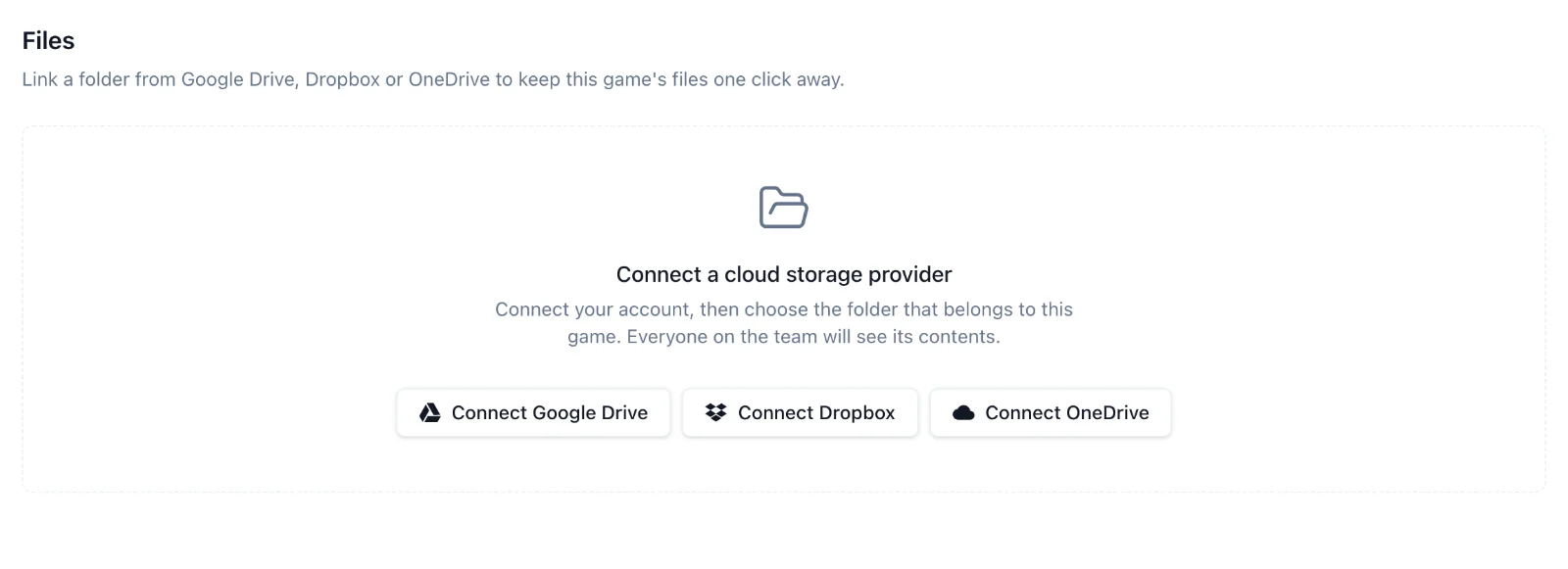
Link a folder to the game from its Files tab.
Helpful details
- Key areas: the file list with the columns Name, Size, Modified and Actions; above it, Refresh, Change folder and Unlink folder; "Linked by {name}" shows who linked it.
- What you can do: Open in {provider}, Download (hidden for files too large to stream), Add to Game Media for images, and preview images in place. In Google Drive you can also browse Shared with me and shared drives.
- Good to know: you must pick a subfolder. Linking a whole drive or a shared view is refused, because it would share all of it with the team. Everyone on the team sees the folder's contents. See Game files.
Import a file into a tool or editor
Wherever you can upload a file, look for Import from cloud storage. It opens the picker Choose from cloud storage, where you browse your connected accounts and pick the files you need.
Helpful details
- Key areas: the game's Media upload, the P&P Cards Layout and TTS Deck Editor tools, the smart object input in Digital Mockups, and the cloud import panel in the sell-sheet editor and the Component Designer.
- What you can do: when a game has a linked folder, the picker offers it as Game folder so you land in the right place.
- Good to know: a file type the tool does not accept is greyed out ("This file type is not supported here."), and files above the tool's size limit are refused.
When a connection expires
Providers expire their permission from time to time. The Files tab then reads "The {provider} connection has expired. Reconnect it to see the files again." with a Reconnect {provider} button. Teammates see "Ask {name} to reconnect {provider} to see the files again."
Helpful details
- Key areas: the Files tab and the picker.
- What you can do: reconnect from the message, from the picker or from the Cloud storage card.
- Good to know: only the person who linked the folder can reconnect it; the link stays in place.
Disconnect a provider
On the Cloud storage card, click Disconnect next to the provider and confirm Disconnect {provider}?.
Helpful details
- Key areas: the confirmation reads "Folders you linked to games through this connection will be unlinked. You can reconnect at any time."
- What you can do: reconnect later and link the folders again.
- Good to know: disconnecting never touches the files in your drive. Unlink folder on a game likewise removes only the link: "The folder and its files stay in {provider}."
Tips & common questions
Do my teammates need their own connection? To browse a game's linked folder, no: the whole team sees it through the linker's connection. To link folders or import into tools themselves, yes.
Can I link two folders to one game? No. One folder per game. Use Change folder to point it elsewhere.
Can Collaborators see the Files tab? A Collaborator sees the games they were granted. Keep sensitive files out of a linked folder if the game is shared widely.
Why is a file not downloadable? Very large files cannot be streamed through Boardssey. Use Open in {provider} instead.
Why is Google Drive missing? Google Drive is in beta and offered to some teams only for now. Dropbox and OneDrive work for every team. A folder a teammate already linked from Google Drive stays readable for the whole team.
Does this count against my plan? No. Files stay in your drive; Boardssey stores only the link.