IDML Translator
Translate an InDesign rulebook into another language, review it side by side, and download an IDML that keeps every style.
Last reviewed November 2, 2026
Localizing a rulebook usually means copying text out of InDesign, sending it to a translator, and pasting it back paragraph by paragraph. The IDML Translator does the round trip for you: it reads your InDesign file, translates every paragraph, lets you review and approve each one, and gives you back an IDML with the same layout and styles in the new language.
What this page helps you do
- Upload a rulebook exported from InDesign as IDML.
- Translate it into Portuguese (Brazil), Spanish, French, German, Italian or English.
- Build a glossary from your rulebook PDF and keep game terms consistent.
- Pick up a teammate's review on any device.
- Review each segment next to the original, fix it, and approve it.
- Download a translated IDML and a PDF review sheet.
You'll start from Tools, under the Pre-production chip.
Before you start
- The IDML Translator is part of the Oracle plan. On other plans its card shows a lock with the plan's name, and opening it explains how to upgrade.
- Collaborator seats cannot open it.
- In InDesign, save your rulebook with File > Save As > InDesign Markup (IDML). Files can be up to 100 MB.
Open the tool and upload your file
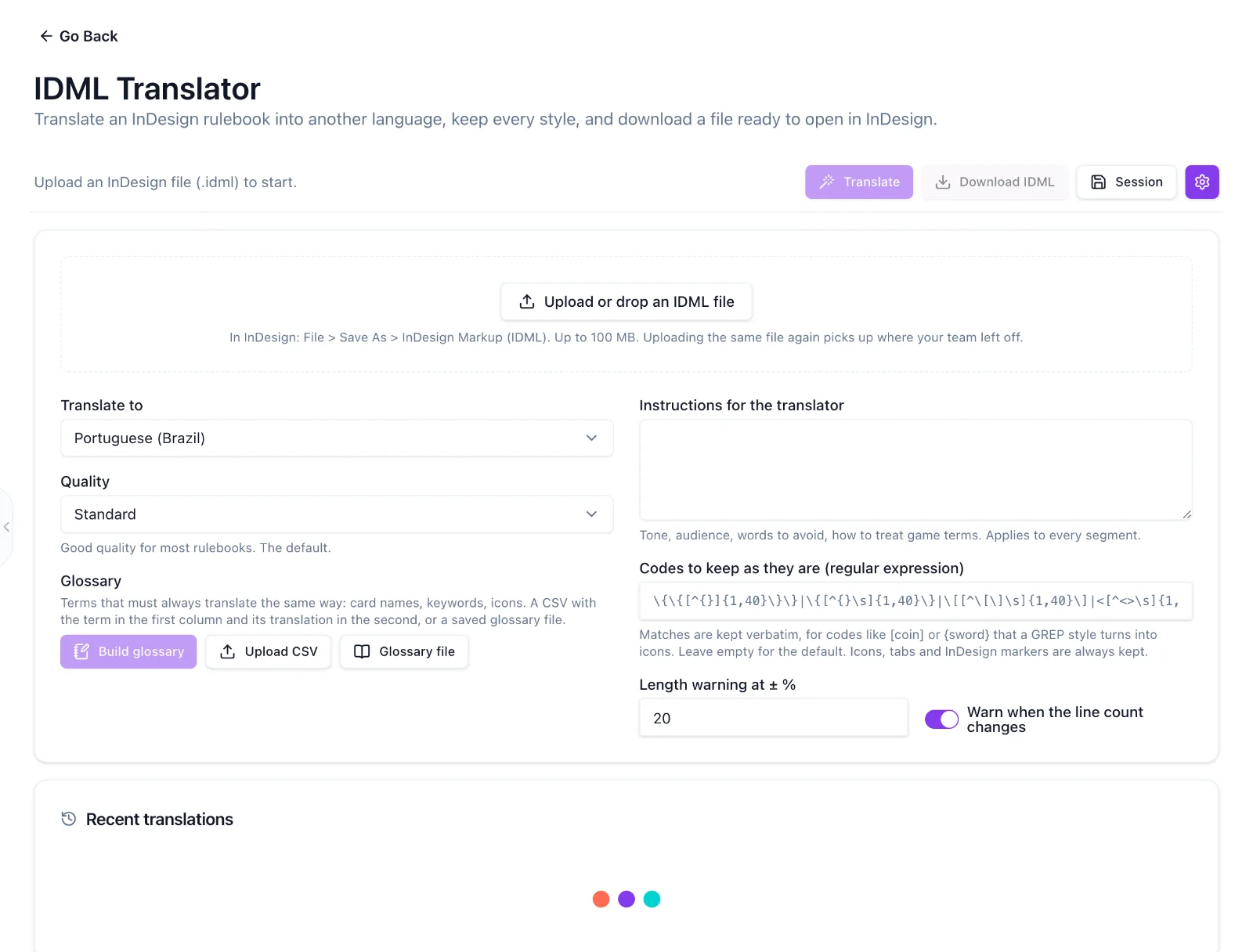
In the sidebar, open Tools, click Pre-production, then click IDML Translator. Click Upload or drop an IDML file, or drag the file onto the box.
Helpful details
- Key areas: a toolbar with Translate, Download IDML, Session and a settings button; the upload box; then the settings.
- What you can do: after the upload, a message tells you how many segments and paragraphs were found. A segment is a run of text with one formatting: a bold word inside a sentence is its own segment.
- Good to know: your file is kept privately for your team and deleted after 30 days. Uploading the same file again picks up where you or a teammate left off.
Pick up where your team left off
Before a file is open, Recent translations lists the files your team worked on in the last 30 days, with the language, how many segments are approved, and who touched it last. Click Resume to open one.
Upload an IDML file, or resume a recent translation.
Helpful details
- Key areas: next to the file name, the toolbar says Saved for the team a few seconds after each change.
- What you can do: start a review on one computer and finish it on another, or hand it to a teammate: they see the same translations, approvals, settings and glossary.
- Tidy up: click ⋮ next to a file and choose Archive to hide it from the list. Archived at the top of the list shows those files again, and resuming one moves it back. Delete removes the file for the whole team (the IDML, its glossary, the review and every translated file made from it) and cannot be undone.
- Good to know: this browser keeps its own copy too. When both exist, the newer one opens. If two people edit the same file at the same time, the last save wins, so take turns on a file.
Choose the language and the settings
Pick a language under Translate to and a Quality. Standard suits most rulebooks; Best is better on flavor text; Draft and Fast are quick first passes.
Helpful details
- Key areas: Glossary, Instructions for the translator, Codes to keep as they are, and two checks: a length warning and a line count warning.
- What you can do: click Build glossary to get the names, keywords and phrases that must always translate the same way, or upload one as a CSV (term in the first column, translation in the second). Terms from the glossary are highlighted in the original. Write instructions about tone or audience.
- Good to know: icons, tabs and InDesign markers are never translated. Codes like
[coin]or{sword}that a GREP style turns into icons are kept as they are by default.
Build a glossary from your rulebook
Click Build glossary (or Edit glossary once you have one) under Glossary. Click Suggest from the rulebook PDF and pick the rulebook, or Suggest from this file to use the text of the IDML itself.
Helpful details
- Key areas: each term has its translation, a category (mechanic, character, place, item or card, flavor, icon or label) and how many times it appears in your file. Notes explain a choice when there was one to make.
- What you can do: fix a translation, change the category, remove a term or add your own, then click Save and use. The glossary is kept with the file for your team, and every translation from then on follows it.
- Good to know: the PDF is read on your computer and only its text is sent. A scanned PDF has no text to read: use Suggest from this file instead. For Portuguese (Brazil), the common board game terms are added for you. Suggestions count toward the monthly limit below.
Translate and review
Click Translate. Progress shows in the toolbar while the file is translated a few paragraphs at a time.
Helpful details
- Key areas: each segment is a card with the original and its styles on the left and the translation on the right. When a segment is part of a longer sentence, the whole sentence shows under it on both sides.
- What you can do: edit the translation in place, copy the original over, go back to the first translation, or translate the paragraph again. Press Ctrl+Z (Windows) or Cmd+Z (Mac) to undo, with Shift to redo.
- Good to know: a red Length or Lines label means the translation is much longer or shorter than the original, or has a different number of lines, so it may not fit the frame. Match line breaks spreads the text over the same number of lines.
Approve and download
Click the check mark on a segment to approve it, or filter the list and click Approve shown. Once every segment is approved, click Download IDML.
Helpful details
- Key areas: the search box takes text or segment numbers (
12,10-20,1-3;7). Only changed, Hide approved and Next to approve help you work through a long file. - What you can do: open the downloaded file in InDesign. From Session, download a Review sheet (PDF) with the original and the translation side by side for a proofreader.
- Good to know: Session also saves your work to a file and loads it back, or merges translations from an earlier version of the same rulebook into the one on screen.
Tips & common questions
Running Translate again translates everything again? No. It translates the segments that are still untranslated. When every segment has a translation, it translates again the ones you have not approved.
Is there a limit? Each team can translate up to 2 million characters of text in any 30 days, several long rulebooks. Glossary suggestions count too. If you reach it, the tool says so and frees up as older translations pass 30 days.
The upload expired. Files are kept for 30 days. Upload the same file again: your team's review comes back with it, as long as the file has not changed since.