Dieline Templates
Generate cut, fold and bleed lines for cards, boxes, boards, punchboards and paper parts as a PDF you can design over.
Last reviewed November 8, 2026
A dieline is the technical drawing a printer uses to cut and fold a component: the flat outline with its cut lines, fold lines and bleed. Dieline Templates draws one for the common board game parts so you can lay your artwork over it.
What this page helps you do
- Pick a template: card, box, board, punchboard, booklet, pad or sheet.
- Enter the size, material thickness and other options.
- Download the dieline as a PDF.
You'll start from Tools, under the Pre-production or Prototyping chip.
Before you start
- Know your sizes in millimetres. A bleed is the extra art that runs past the cut line so there are no white edges; a margin is the safe zone inside the cut where important art should stay.
- If a manufacturer has already sent you their own template, use theirs for production.
Open the tool
In the sidebar, open Tools, click Pre-production (or Prototyping), then click Dieline Templates.
Helpful details
- Key areas: a Template Settings panel on the left and a Preview on the right. The Generate PDF button sits in the page header.
- What you can do: change any setting and watch the preview redraw.
- Good to know: the tool is listed under both Pre-production and Prototyping.
Pick a template
Open the Template list and choose the part you are making.
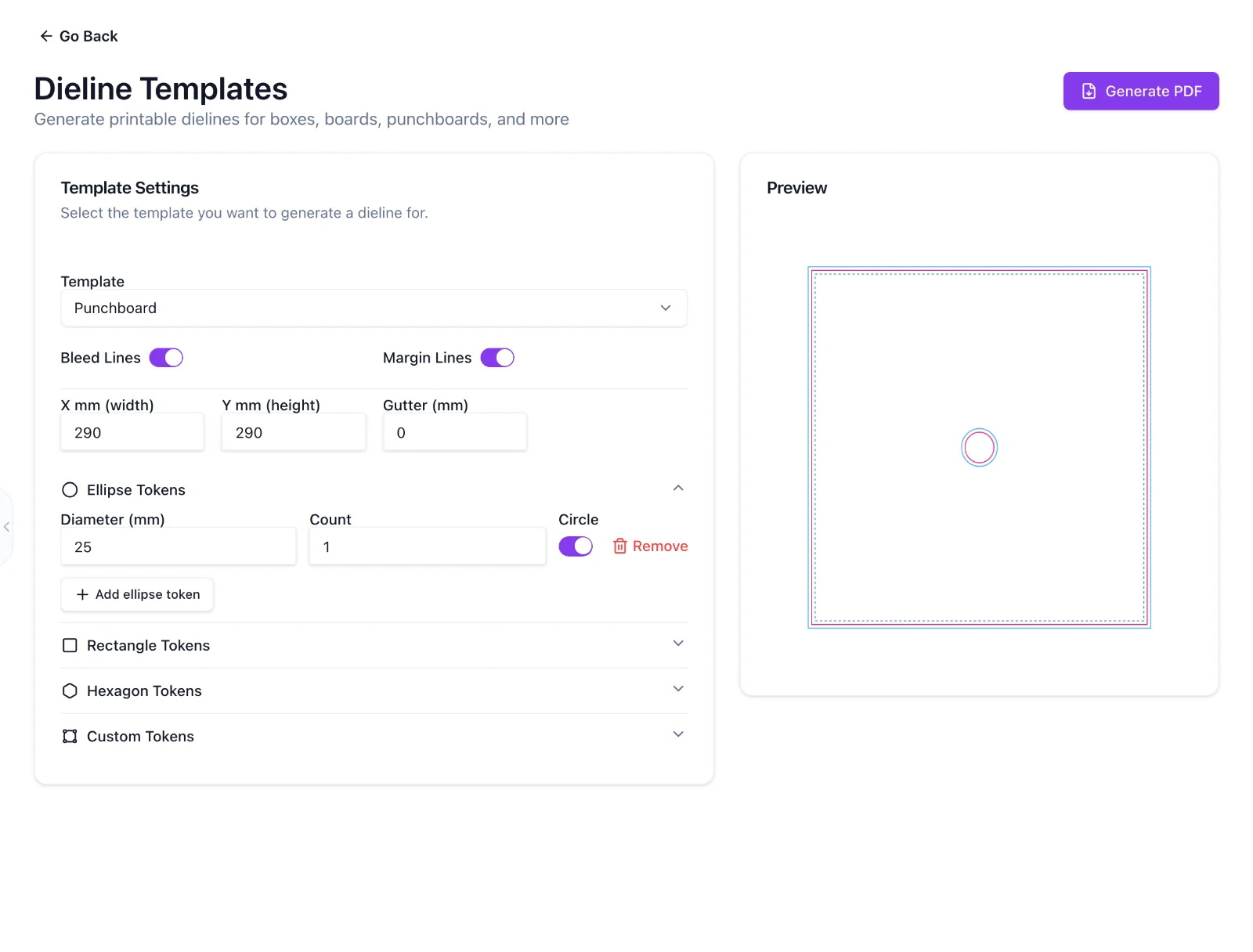
Pick a template, set its size, and see the dieline.
Helpful details
- Key areas: the list is grouped. Boards & Punchboards: Cardboard Mat, Game Board, Punchboard. Boxes: Two Piece Box. Cards & Paper: Card, Paper Booklet, Paper Pad, Paper Sheet and Tuck Box.
- What you can do: switch templates at any time; the shared settings (size, bleed) stay.
- Good to know: a Two Piece Box is a lid and a base. A Tuck Box is the one-piece card box with flaps.
Set the size and the guide lines
Every template takes X mm (width) and Y mm (height), plus the two toggles Bleed Lines and Margin Lines.
Helpful details
- Key areas: parts with depth (the two boxes) also take Z mm (depth). Boxes and boards take Material (stock) mm: 1, 1.5, 2 or 2.5 mm of board.
- What you can do: turn Bleed Lines and Margin Lines off for a cleaner cut-only drawing.
- Good to know: the preview shows the Total Size of the flat drawing and, for folded parts, the Folded Size.
Template options
Each template adds its own controls under the size fields.
Helpful details
- Key areas:
- Card: Card Size Mode is Custom or Standard (preset). A preset picks a Card Preset from Common Sizes or Other Available Sizes and locks the width and height. Corner Radius (mm) rounds the corners. The preview reports Cards per sheet.
- Tuck Box: Mode is By Size (enter Z mm (depth)) or By Card Type (pick a Card Material (mm) from the list of card stocks, for example "0.28 (300gsm bluecore)", and a Number of Cards, and the tool works out the depth). Thumbcut adds the half-moon opening.
- Two Piece Box: Z mm (depth) and Material (stock) mm.
- Game Board: Folds (No Fold, 1/2 horizontal or vertical, 1/3 horizontal or vertical, 1/4, 1/6) and Double Sided.
- Cardboard Mat: Rounded edges.
- Punchboard: add Ellipse Tokens, Rectangle Tokens, Hexagon Tokens or Custom Tokens (Upload SVG), each with a size and a Count, plus Gutter (mm) between tokens. The tool packs the tokens on as few sheets as it can: rectangles, ovals and custom shapes turn when that fits better, runs of circles or hexagons nest in a honeycomb, and it tries many arrangements and keeps the one with the fewest sheets, then the tidiest: honeycomb rows stay centred on each other (three, two, one rather than four and two), and the layout sits in the middle of the sheet. With Minimize dielines to save cost on (the default), tokens that need more than one sheet are shared out over sheets that are each cut several times, so the die maker needs fewer dies than sheets; the preview says how many times each one is cut and how many spare tokens the rounding adds. The tool never spends more sheets than the plain layout needs, since every copy of the game pays for its sheets: it picks the fewest dies within that, then the fewest spares. Turn the switch off to pack every sheet differently with no spares. Tokens that do not fit one sheet go on the next, and the preview pages through the sheets (Sheet 1 of 2) and shows how full each one is. A Warning appears only when a token is larger than the sheet itself.
- Paper Booklet: Layout (1 x 1 vertical or horizontal fold, 1 x 1 x 1, 2x2, 2x3, 3x2, 2x4, 4x2, 3x4, 4x3, 4x4) with Folded X mm (panel width) and Folded Y mm (panel height).
- Paper Sheet and Paper Pad: width and height.
- What you can do: for a punchboard, mix token shapes and adjust sizes or the sheet until the tokens fit on the number of sheets you want.
- Good to know: there is no glue-tab setting; the box templates draw the tabs for you.
Quick Punchboard
On the Punchboard template, Quick Punchboard turns a description into token rows. Click Describe tokens, write what your game needs (for example "30 gold coins of 22 mm, 12 wound markers and 20 hex terrain tiles of 50 mm") and click Lay out tokens.
Helpful details
- Key areas: Boardssey picks a shape, a size and a count for each kind of token, fills the Ellipse, Rectangle and Hexagon rows with them (each row named after its token), and packs them on as few sheets as possible. Sizes you give are kept; the ones you leave out get a usual size for that kind of piece.
- What you can do: tick Keep the tokens on the board and change them to build on what is there ("add 10 more coins", "make the markers 18 mm"). Name a sheet or box size to change the sheet. Click Undo on the message to bring your rows back. Every row stays editable afterwards.
- Good to know: Quick Punchboard is part of the Oracle plan; on other plans the button shows the plan's name and opens the upgrade. Custom SVG tokens are never changed. Dice, cards and wooden pieces are not punchboard parts, so they are left out. Each team has a daily number of Quick Punchboards.
Generate the PDF
Click Generate PDF in the page header.
Helpful details
- Key areas: the PDF is drawn as vector lines, with colors set in CMYK, so it opens cleanly in Illustrator, Affinity or Inkscape.
- What you can do: place the PDF as a locked layer in your design file and paint the artwork over it, or hand it to the printer as the cut file.
- Good to know: the button is disabled while a setting is invalid (a negative corner radius, a box with no depth, a token larger than the punchboard). A punchboard on several sheets downloads as one PDF with a page per sheet.
Tips & common questions
My manufacturer wants an AI or EPS file. Open the PDF in your vector editor and export the format they ask for. The lines stay vector.
The dieline does not match my manufacturer's template. Factories often have templates tuned to their machines. Use this tool for prototypes and quotes; use the factory's file for the final run.
Which card size should I pick? Choose Standard (preset) and browse Common Sizes. Standard poker cards (63 × 88 mm) are the safe default; P&P Cards Layout uses the same presets.
Can I make a single token or a sticker? Use the Punchboard template with one token, or the Card template with a custom size and corner radius.