Link a cloud folder to a game
Connect Google Drive, Dropbox or OneDrive and link a folder to a game, so the whole team browses its files from the Files tab.
Last reviewed November 2, 2026
The Files tab links one folder from Google Drive, Dropbox or OneDrive to a game. Everyone on the team browses, previews and downloads the folder's files inside Boardssey, and any image or PDF can be added to the game's Media in one click.
Every team has the Files tab. Dropbox and OneDrive are open to everyone; Google Drive is in beta and offered to some teams only for now.
What this page helps you do
- Connect your Google Drive, Dropbox or OneDrive account.
- Link the game's folder and let the team see its contents.
- Preview, download and open files, or add them to Game Media.
- Change or unlink the folder.
You'll start from a game's page: click the Files tab, right after Game Info.
Before you start
- Google Drive is in beta for some teams. If your team does not have it, the Files tab offers only Dropbox and OneDrive.
- The connection is personal: you connect your own cloud account, and the folder you link is shared with the team through you.
- You need access to the folder in the provider. Teammates do not need their own access to browse it here.
Connect a provider
On the Files tab, under Connect a cloud storage provider, click Connect Dropbox or Connect OneDrive (and Connect Google Drive if your team is in the Google Drive beta) and sign in with that provider. You can also connect from Settings > Integrations, in the Cloud storage card.
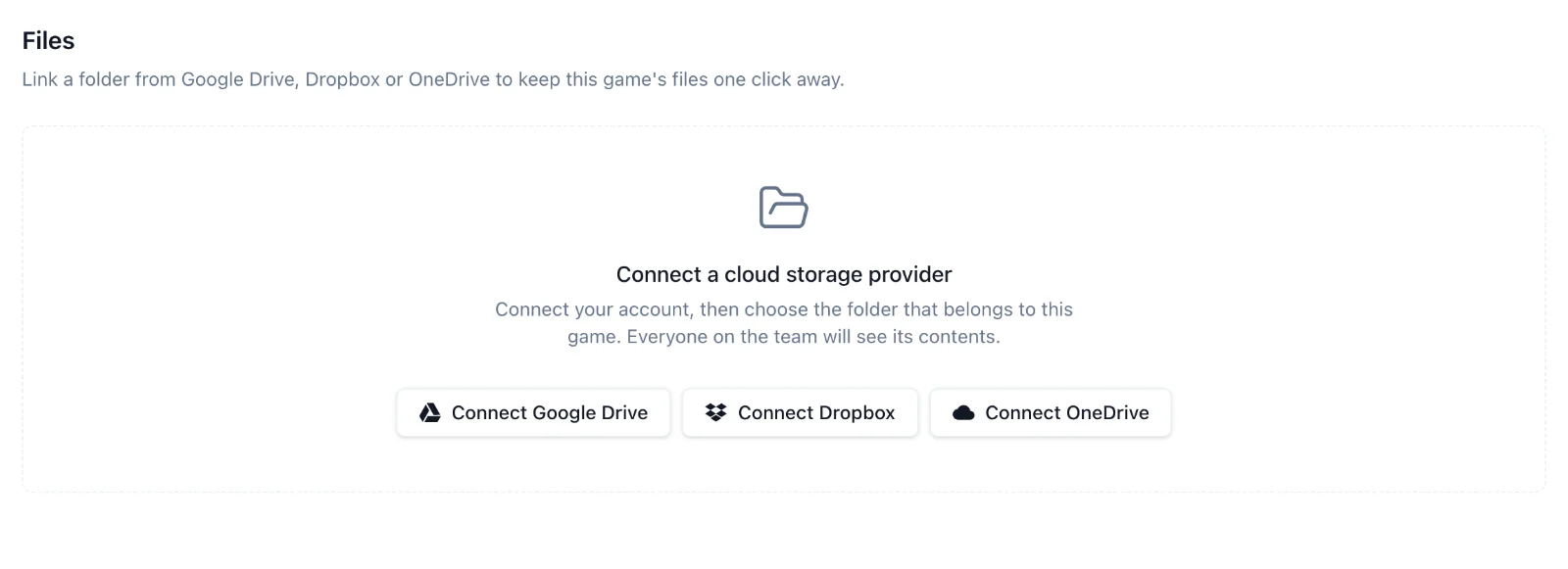
Connect a provider here, then link the game's folder.
Helpful details
- Key areas: the Files tab description reads "Link a folder from Google Drive, Dropbox or OneDrive to keep this game's files one click away."
- What you can do: connect more than one provider. Each shows its own Choose folder from ... button.
- Good to know: the Settings card lists each connection as "Connected as you@example.com" with the number of linked game folders, and a Disconnect button. Disconnecting unlinks every folder you linked through that account. See Cloud storage.
Link the game's folder
Click Choose folder from Google Drive (or Dropbox, OneDrive). In the Choose a folder dialog, open the folder that belongs to this game and click Select this folder.
Helpful details
- Key areas: you must open a folder; the whole drive and shared views cannot be linked, because that would share all of it with the team.
- What you can do: one folder per game. Pick the game's root folder; subfolders show inside the tab.
- Good to know: after linking, the tab shows the provider, "Linked by {your name}", and the folder's contents. A toast confirms "Folder linked".
Browse the folder
The folder shows as a table with Name, Size and Modified. Click a folder to open it, and an image to preview it in a lightbox.
Helpful details
- Key areas: above the table: Open in Google Drive (or your provider) opens the folder on the provider's site, Refresh reloads the list, Change folder picks another one, and Unlink folder removes the link.
- What you can do: each file's row menu has Open in ..., Download and Add to Game Media. Long folders have a Load more button.
- Good to know: very large files cannot be downloaded through Boardssey; the menu then offers only Open in .... "No preview available for this file." shows for types the preview cannot show.
Add a file to Game Media
In a file's row menu, click Add to Game Media. The image or PDF is copied into the game's Media tab, private until you share it there.
Helpful details
- Key areas: a toast confirms "{name} added to Game Media". The Media tab's upload form also offers Import from cloud storage, which lets you pick a file from your connected accounts.
- What you can do: keep your working files in the cloud folder and copy only the finished cover, renders and PDFs into Media for the catalog.
- Good to know: the copy is independent. Changing the file in the cloud later does not update the Media copy. See Game media and assets.
Change or unlink the folder
Click Change folder to pick another folder with the same provider, or Unlink folder to remove the link. The dialog Unlink this folder? explains: "The folder and its files stay in {provider}. Only the link to this game is removed."
Helpful details
- Key areas: unlinking never deletes anything in your cloud storage.
- What you can do: anyone on the team can link a folder, but only the person who linked it or a team Admin can change or unlink it.
- Good to know: deleting the game removes the link too; the folder stays where it is.
When a connection expires
Providers sometimes require a fresh sign-in. The person who linked the folder then sees "The Google Drive connection has expired. Reconnect it to see the files again." with a Reconnect button. Everyone else sees "Ask {name} to reconnect Google Drive to see the files again."
Tips & common questions
Who can see the folder? Everyone who can open the game: Admins, Members, and Collaborators granted the game. They see what your account sees, so link only folders meant for the team.
Can I link two folders to one game? No. Link the parent folder; its subfolders show inside the tab.
Can I upload files to the folder from Boardssey? No. Add files in Google Drive, Dropbox or OneDrive. They appear here after Refresh.
Does this replace the Media tab? No. Media is what your catalog and press kit use. The Files tab is your working folder; copy the finished pieces to Media.
Why is there no Google Drive button? Google Drive is in beta and offered to some teams only for now. Use Dropbox or OneDrive, or keep links to Drive folders in External Resources. See External resources.